macOS
Shortcuts Editor for Mac
See your Apple Shortcuts as a diagram, not a list.
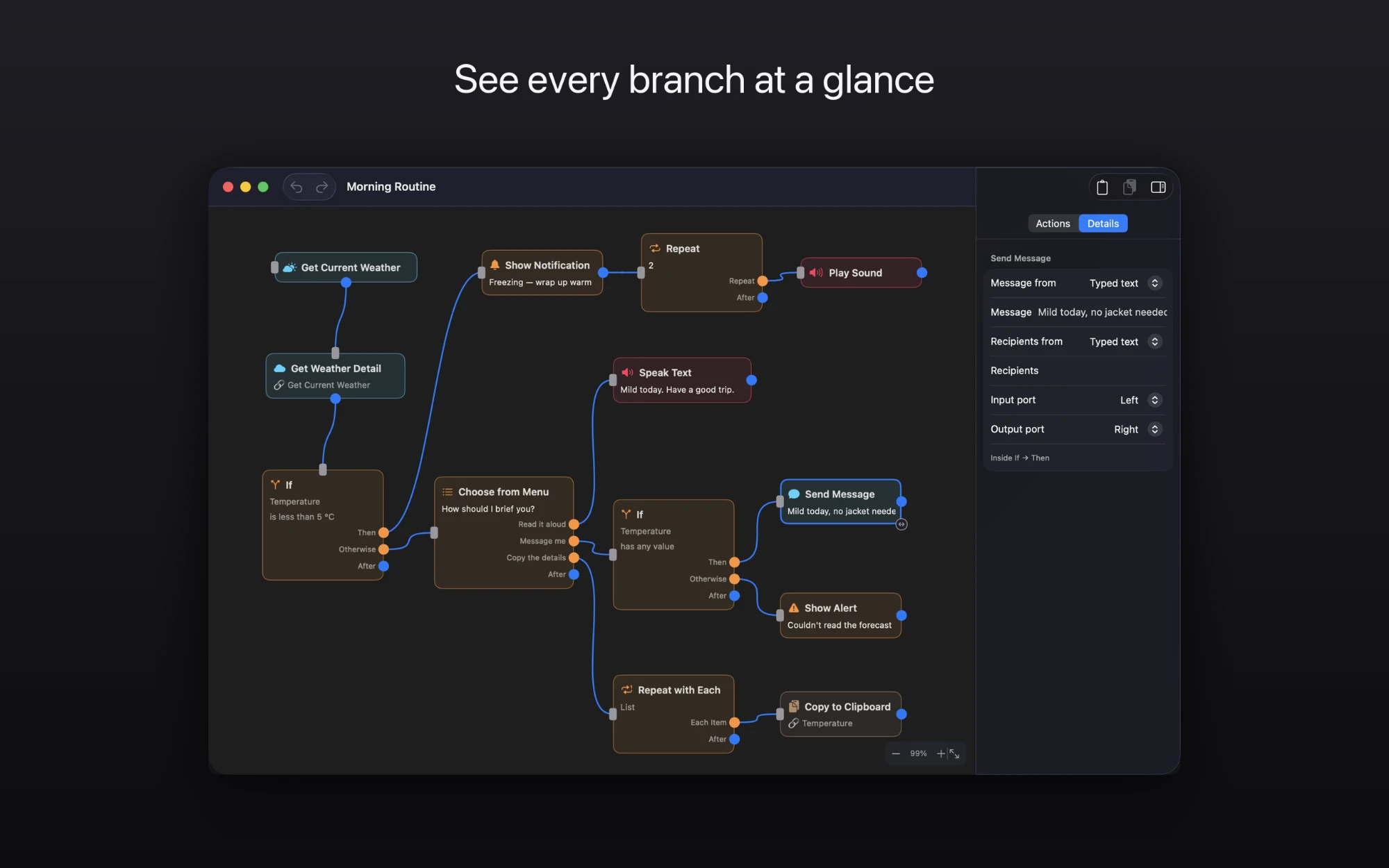
Apple's Shortcuts app shows automations as one long vertical list. That works until your shortcut has branches and loops — then understanding what actually runs, and when, means scrolling and guessing. Shortcuts Editor is a visual editor for Apple Shortcuts. It opens the same shortcuts as a flowchart on a node canvas, where every action is a box, every connection is a visible wire, and every branch is a fork you can follow with your eyes.
Download on the Mac App Store
What it does
Open your real shortcuts
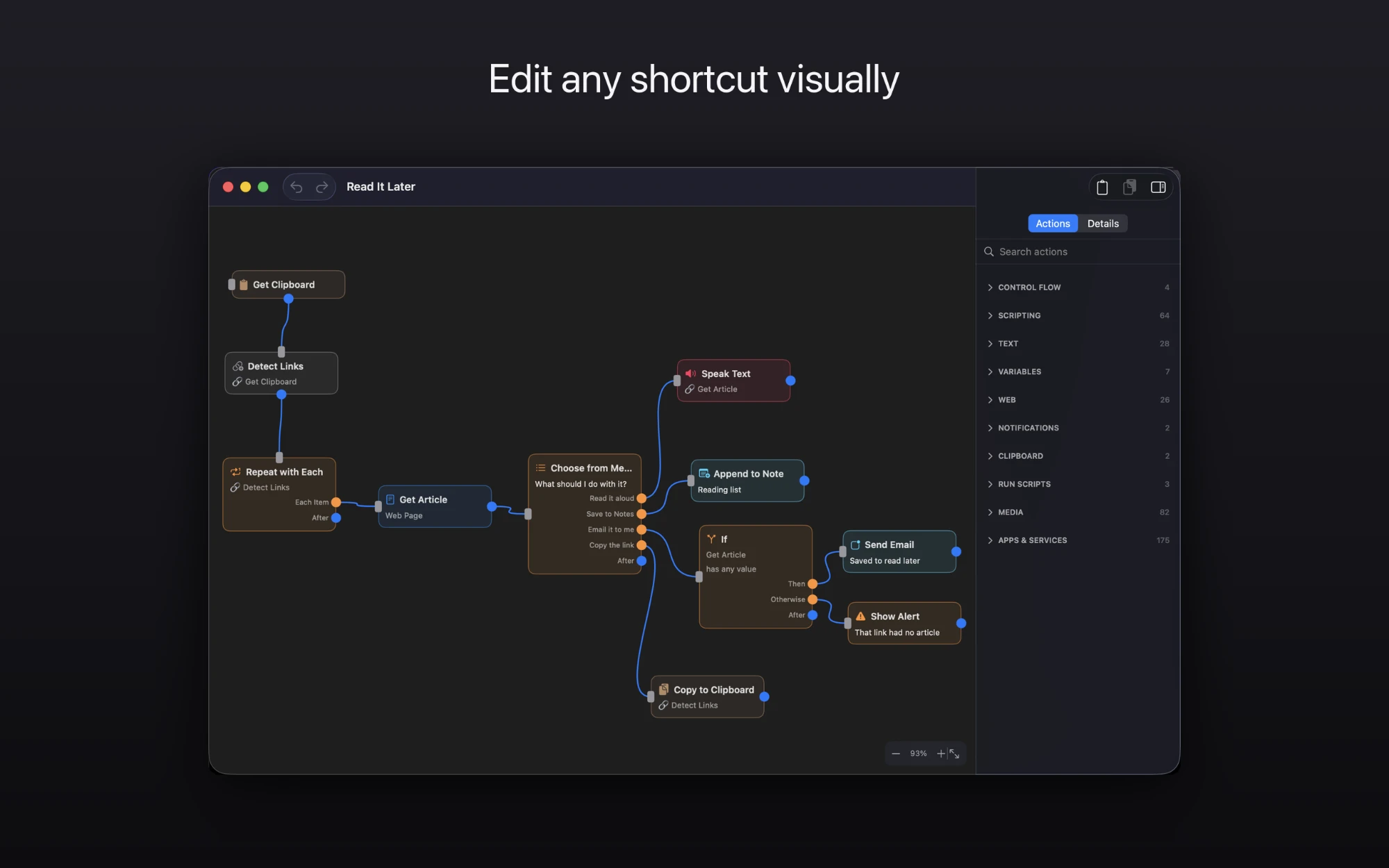
Import any .shortcut file straight from the Shortcuts app and see the whole automation laid out at once.
Branching you can see
If / Otherwise, Repeat, Repeat with Each, and Choose from Menu all render as real, separate paths on the canvas.
A real editor
Drag actions, rewire connections, edit values on the node or in the inspector, with multi-select and undo.
Variables
Point a field at a variable set earlier in the flow, instead of only literal text.
Save your work
Save and reopen canvases as project files, with autosave keeping your layout between launches.
Send it back to Shortcuts
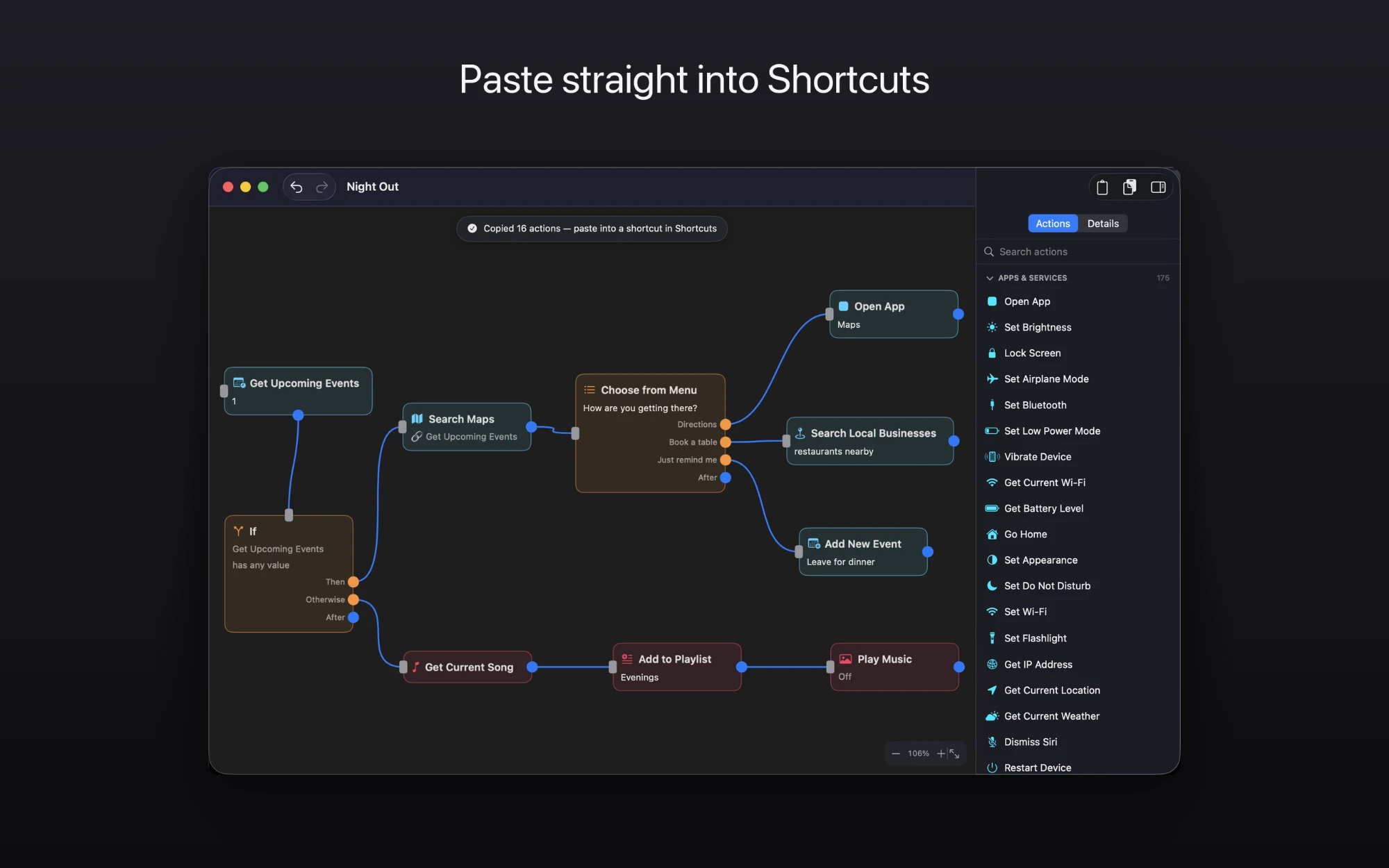
Copy to Shortcuts puts the whole workflow on your clipboard — paste it straight into Apple's Shortcuts app, branching intact.
Entirely offline
No account, no tracking, no network access at all. Your shortcuts never leave your Mac.
Please note: workflows move back into Shortcuts by copy and paste — every action transfers, branching included, and you paste into a shortcut you create and name yourself.
Keyboard shortcuts
File
Edit
View
Canvas
The same list lives in the app under Help ▸ Keyboard Shortcuts.
Questions
Can I see an Apple Shortcut as a flowchart?
Yes. Shortcuts Editor opens a shortcut on a node canvas: every action is a box, every connection is a wire, and If / Otherwise, Repeat, Repeat with Each and Choose from Menu fork into separate paths you can follow.
Do edited shortcuts still work in Apple's Shortcuts app?
Yes. Copy to Shortcuts puts the whole workflow on the clipboard, and you paste it into a shortcut in the Shortcuts app with branches, loops and menus intact.
Is Shortcuts Editor free?
It is free on the Mac App Store. Opening, reading, editing and saving are free. Copying your work back into Shortcuts is a one-time in-app unlock, and the first three copies are free so you can try it.
Does Shortcuts Editor run on iPhone or iPad?
No. It is a Mac app and needs macOS 14 or later. If iCloud sync is on in Shortcuts, anything you paste into Shortcuts on your Mac also appears on your iPhone and iPad.
Does it send my shortcuts anywhere?
No. Shortcuts Editor has no account, no tracking and no network access. Your shortcuts never leave your Mac.